
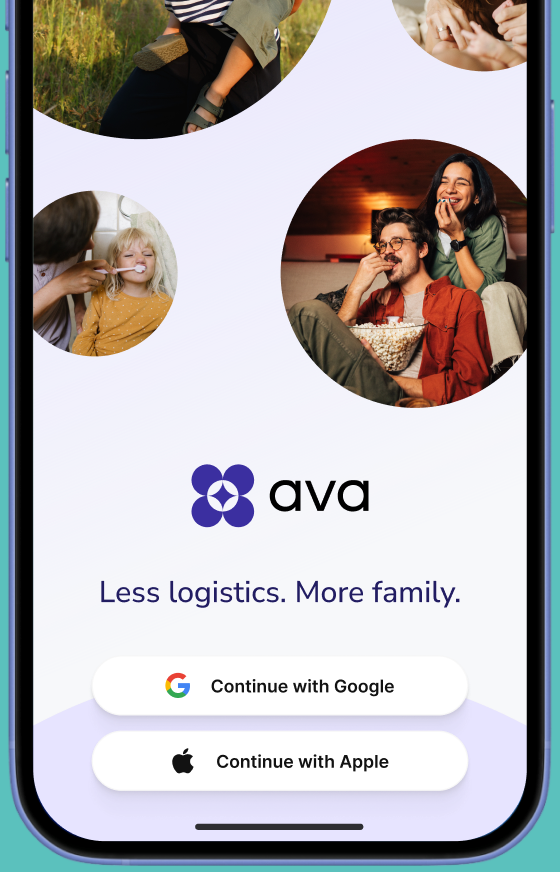
Connect your Gmail and Google calendars
Connect Gmail and Google Calendar so AVA can understand what's coming up.
Set up AVA in minutes. It starts working with what you already use, with no new system to learn.
Connect Gmail and Google Calendar so AVA can understand what's coming up.
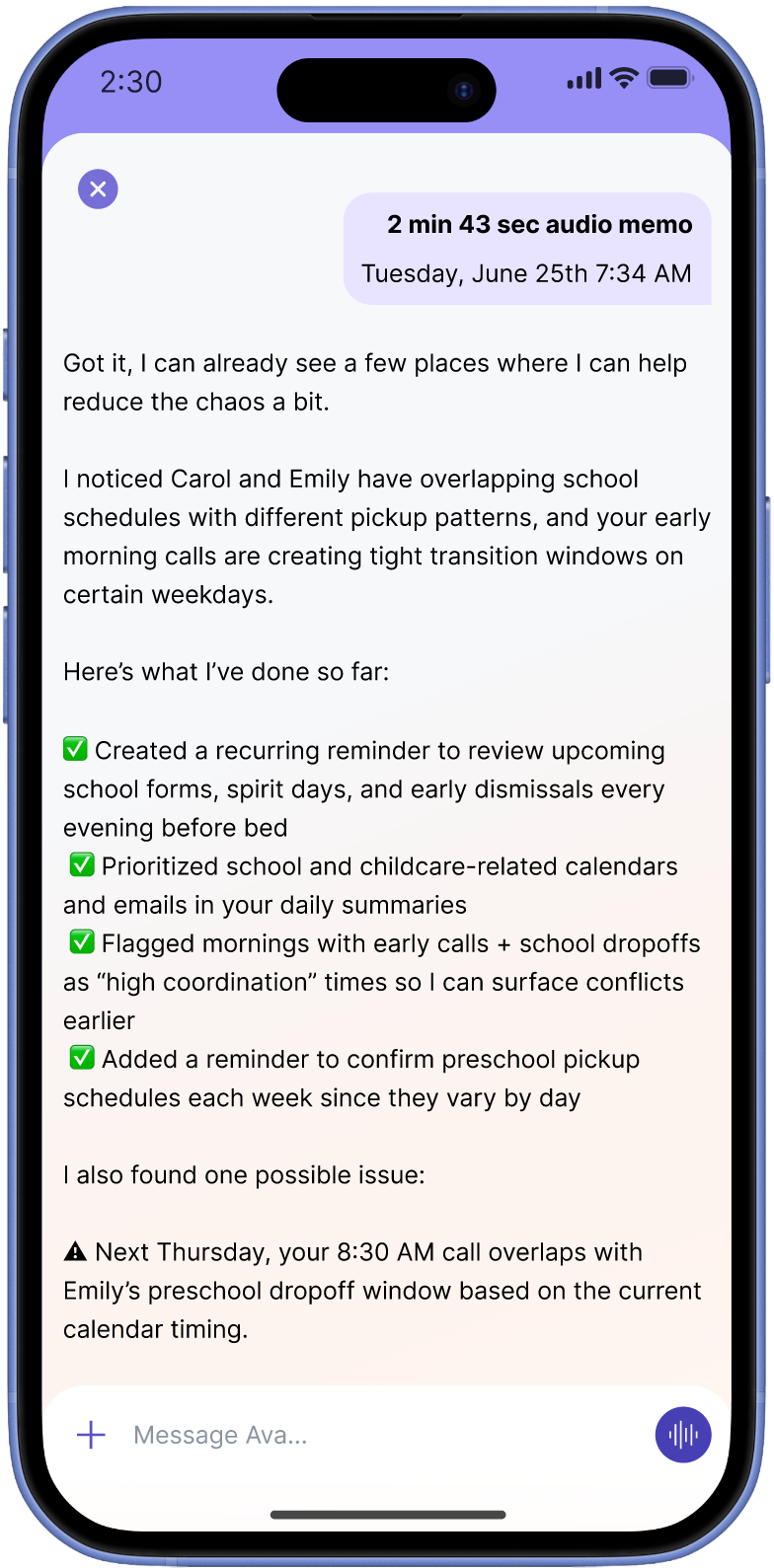
Share a few details like preferences, routines, and what matters most.
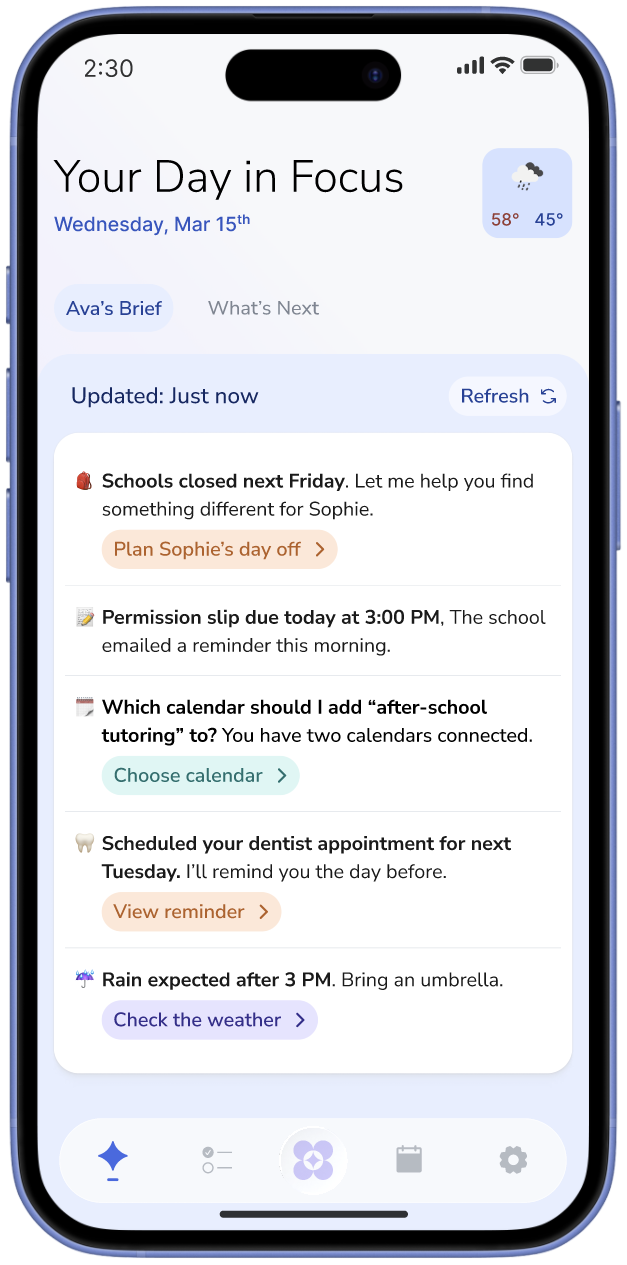
AVA starts surfacing what needs attention and helping you move things forward right away.
AVA lightens the mental load of running a household. It turns the everyday chaos in your head and in your inbox into clear next steps, and helps you take care of them. You shouldn't have to keep track of everything yourself.
ANTICIPATE
AVA scans emails and calendars as well as any pictures, screenshots and voice notes you share in order to surface what needs attention before it becomes urgent.
COORDINATE
AVA researches options, drafts messages, proposes times and helps coordinate the parts of life that take up space in your brain.
ORGANIZE
AVA transforms scattered information into structured plans, helping to organize tasks, events and reminders in one place.
FOLLOW THROUGH
AVA keeps track of what still needs attention and reminds you at the right time so you don't have to do it all yourself.
Real moments from real days. See how AVA turns the mental clutter into done, saving you time, easing the stress, and keeping life moving.
AVA scans email, screenshots, and messages to pull out dates, times, and details, then organizes everything into your calendar automatically.
Examples:
Demo coming soon
AVA is designed to support you, not replace you. You decide what moves forward, what gets shared, and what stays private, every step of the way.

AVA doesn't take action without you. Every suggestion is surfaced for approval, so you stay in charge of what actually happens.

AVA uses your information to help you, not to sell it. Your data is private, secure, and only used to support your household.

Everything AVA does is visible and trackable. You can always see what's been suggested, what's been handled, and what still needs attention.

AVA is shaped by real feedback from parents and households. We're building this with you, not just for you.
Everything you need to know about getting started, connecting your calendars, managing your account, and using AVA.
AVA helps you stay on top of your household by working with email, organizing your calendar, suggesting next steps, and helping you follow through. It can draft messages, set reminders, and coordinate plans, all with your approval.
Most people can get started in just a few minutes.
Open AVA’s calendar settings and choose the calendar provider you want to connect. Sign in with the account where most of your family-related information arrives, review and approve the requested permissions, then choose the calendars you want AVA to use.
AVA is optimized for Google accounts today and begins surfacing useful suggestions once your account is connected.
AVA can only use calendars available through the Google account you connected and the permissions granted to that account. In AVA, you can choose which calendars AVA should use.
Calendar access allows AVA to show your schedule and, when you ask it to, create or update events. If a requested permission is not granted, some calendar features may not work.
Not without you. AVA surfaces suggestions and prepares things for you, but you decide what moves forward. You're always in control.
AVA connects to the tools you already use, like email and calendar, and learns from the information that you share with AVA directly.
Yes. You can share updates, plans, and reminders so everyone stays on the same page, without everything living in one person's head.
Nothing breaks. AVA will surface it again at the right time or adjust based on what matters most. You're never penalized for ignoring something.
No. AVA is designed to support you, not replace you. You still make decisions. AVA helps reduce the mental load of keeping track and following through.
No. AVA is designed to fit into your life, whether you check in daily or just when you need help.
You can edit, ignore, or correct anything AVA suggests. AVA improves over time based on your feedback and preferences.
If a feature is not working, confirm that AVA is up to date, retry the relevant connection, and note the affected calendar provider and any error message before contacting AVA support.
If you notice you haven’t received notifications from AVA in a while, try signing out of AVA and signing back in. That often restores notification delivery. If notifications still aren’t coming through after you sign back in, contact AVA support.
AVA keeps track of helpful context such as schedules, preferences, and past actions so it can support you better. AVA uses this information to help you, not for advertising.
You can review or remove AVA’s access from your Google Account at any time. Removing access will stop Google-dependent calendar features from working until you reconnect.
Subscriptions purchased through the App Store are managed by Apple.
If there is no Cancel button or Apple shows an expiration date, the subscription is already canceled.
Read Apple’s subscription-cancellation guide
App Store refund requests and eligibility are handled by Apple. AVA cannot issue an App Store refund directly.
Apple says updates are generally available within 24 to 48 hours. If Apple approves the request, the funds may take additional time to return to your payment method.
Requesting a refund does not necessarily cancel your subscription. If you do not want it to renew, cancel the subscription separately in iOS Settings.
